
1. Connect your Router to the ONT
Use an Ethernet cable to connect the WAN port of your ASUS DSL‑AC68U AC1900 router to the first port (LAN1 or GE1) on your Optical Network Terminal (ONT). Sometimes the second ONT port is used instead of the first — check your Zeronet welcome instructions to confirm which port to use. Ensure the router is powered on and that your computer or smartphone is connected via Wi‑Fi or a LAN cable.
2. Access the Router’s Admin Panel
Open a web browser on a connected device and enter 192.168.1.1 or 192.168.0.1 into the address bar. Log in with the default credentials:
Username: admin
Password: admin
If you have changed these credentials and cannot remember them, proceed to Step 7 to reset the router.
3. Set WAN Port & Configure Internet Connection
After logging in, go to WAN > Dual WAN and set the Primary WAN to Ethernet WAN using a LAN port (e.g., LAN Port 4). Then click Apply.
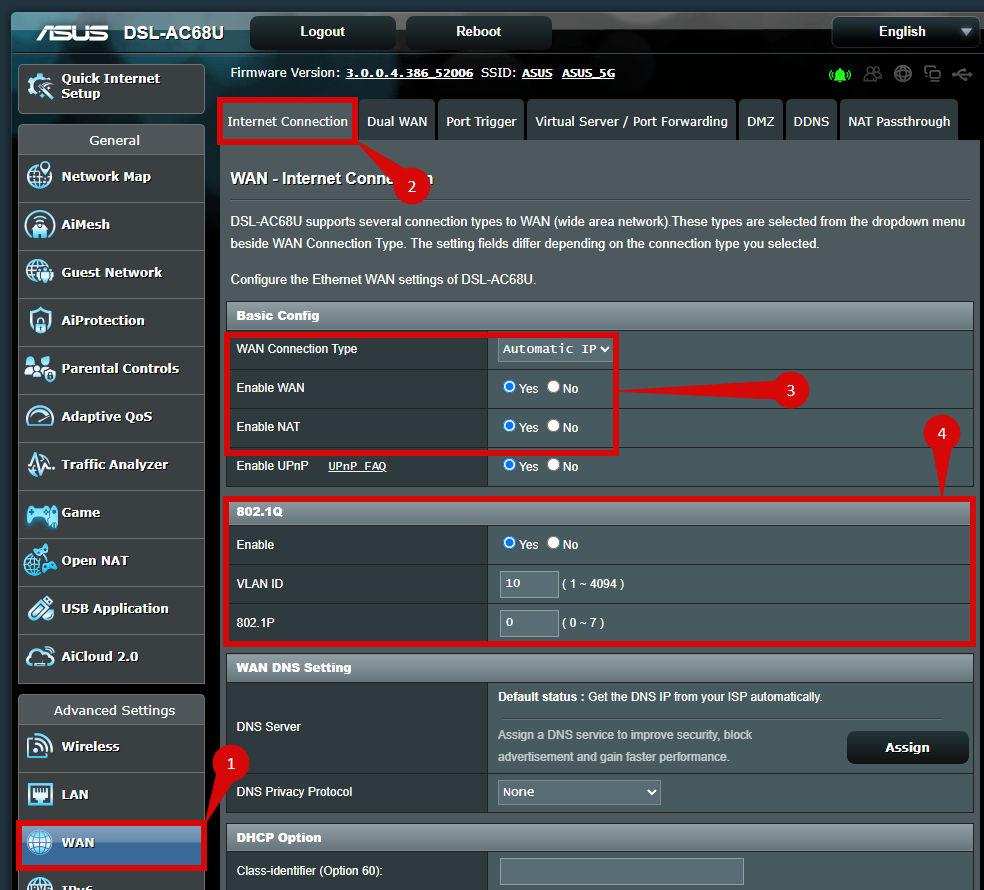
Next, go to WAN > Internet Connection and set:
- WAN Connection Type: Automatic IP (DHCP)
- Enable WAN: Yes
- Enable NAT: Yes
Scroll to VLAN settings under 802.1Q and set:
- Enable: Yes
- VLAN ID: 10
- 802.1P: 0
Click Apply to confirm these settings.
4. Save the Configuration
After entering the settings above, click Apply again to save all changes. The router may restart automatically. Wait a few minutes to allow the restart to complete.
5. Verify the Internet Connection
Once the router has restarted, check the WAN/Internet LED indicator. A solid green light indicates the internet connection is active. On a connected device, try accessing a website to confirm connectivity.
6. Troubleshooting
If the internet connection is not working:
- Restart both the ONT and router by unplugging them for about 30 seconds, then plugging them back in.
- Double-check DHCP and VLAN settings in the router’s admin panel to ensure they are correct.
- Ensure the Ethernet cable is securely connected from the ONT port to the router’s WAN port.
7. Reset the Router
If you cannot access the router due to forgotten credentials or misconfiguration, reset it to factory defaults. Press and hold the reset button on the back of the router for 10–15 seconds until the lights flash. Release the button and allow the router to reboot. Then log in with the default credentials and repeat the setup from Step 2.
8. Final Check
After reset and reconfiguration, ensure all settings are correct and the internet connection is active. Confirm the WAN light is solid green and all VLAN/DHCP settings are correct.
Comments
0 comments
Please sign in to leave a comment.